

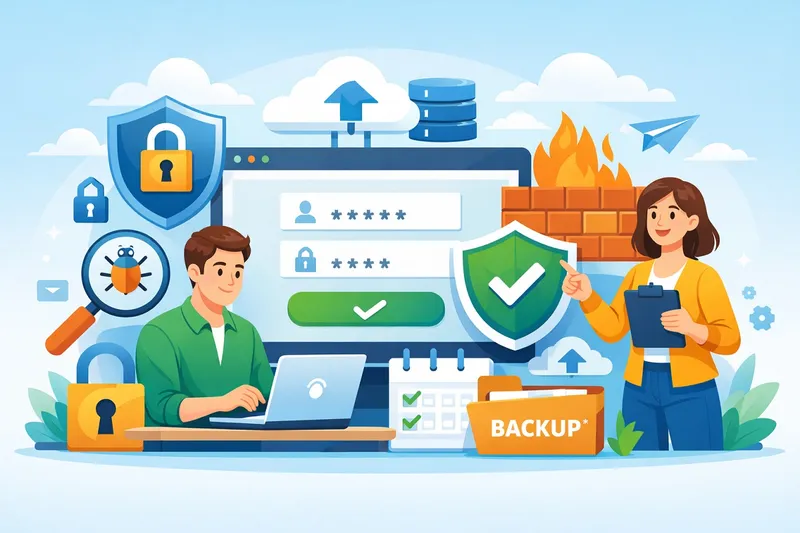
A business website works day and night. It brings customers, builds trust, and often handles payments or personal data. Yet many business owners think security problems only happen to large companies.
That assumption has cost thousands of small businesses their online presence.
In 2023, several small online stores lost customer data after attackers injected malware through outdated plugins. Many owners realized the issue only after Google displayed security warnings on their websites. Traffic dropped instantly. Sales stopped within hours.
Website attacks rarely start with dramatic scenes. Most begin quietly — a weak password, missing updates, or poor backups.
This website security guide for business ownerscan prevent them step by step. Think of this as a practical protection manual that also connects to deeper topics like malware protection, firewall setup, backups, monitoring, and recovery planning.
Because website security is not a one-time task. It is an ongoing responsibility.
Why Website Security Matters More Than Ever
Many business owners focus heavily on design and marketing. Security often becomes an afterthought until something goes wrong.
However, attackers usually target smaller websites because they expect weaker protection.
What Happens When a Website Gets Hacked?
A compromised website can lead to:
- Customer data theft
- SEO ranking loss
- Google blacklist warnings
- Malware spreading to visitors
- Website downtime
- Brand trust damage
For example, when attackers inject spam pages into a website, search engines may index thousands of harmful links. Recovering rankings can take months even after cleanup.
Modern Website Threats Are Automated
Today, bots scan millions of websites daily looking for:
- Outdated CMS versions
- Weak admin credentials
- Vulnerable plugins
- Open server ports
Attackers do not manually choose targets anymore. Automation does the work.
That means even a small local business website can become a victim.
Security Is Also a Trust Signal
Customers now look for signs like:
- HTTPS connection
- Secure checkout pages
- No browser warnings
- Fast and stable performance
A secure website directly affects conversions and reputation.
Understanding Common Website Security Risks
Before setting up protection systems, business owners must understand how most website attacks actually happen. Many hacks are not advanced operations. They succeed because of small gaps left unattended.
Security experts often say one thing clearly: attackers look for the easiest entry point.
Let’s look at the most common risks affecting business websites today.
Outdated Software and Plugins
This remains the number one reason websites get compromised.
Content management systems such as WordPress, ecommerce extensions, themes, and plugins regularly release updates to fix security weaknesses. When updates are ignored, attackers can exploit publicly known issues.
A real situation many agencies encounter:
- A plugin vulnerability becomes public.
- Automated bots begin scanning websites within hours.
- Sites running older versions get infected quickly.
Many business owners delay updates fearing website breakage. Unfortunately, outdated software creates a much bigger risk than temporary layout issues.
Best practice:
- Enable regular updates
- Remove unused plugins
- Use trusted developers only
Weak Passwords and Admin Access Issues
Passwords like:
- admin123
- companyname2024
- password@123
still appear frequently during security audits.
Attackers run automated login attempts called brute-force attacks. These bots test thousands of password combinations every minute.
If admin access fails, attackers cannot proceed further. But once access succeeds, they gain full control.
Common mistakes include:
- Using default admin usernames
- Sharing login credentials across teams
- No login attempt limits
Adding multi-factor authentication dramatically reduces this risk.
Malware Injection Attacks
Malware does not always crash a website immediately. In many cases, attackers quietly insert harmful scripts.
These scripts may:
- Redirect visitors to scam websites
- Inject SEO spam pages
- Steal customer information
- Install hidden backdoors
One ecommerce store owner noticed traffic increasing suddenly. Later they learned thousands of spam product pages had been injected without their knowledge.
Search engines later flagged the website as harmful.
That damage often takes longer to repair than the hack itself.
Lack of SSL Encryption
If a website still runs on HTTP instead of HTTPS, data travels without encryption.
Login credentials, form submissions, or payment details can be intercepted.
Search engines also mark non-secure websites as risky.
Organizations like Google actively encourage HTTPS adoption because encrypted communication protects users and improves trust signals.
We will cover SSL setup in detail later in this guide.
Poor Hosting Security
Not all hosting environments provide equal protection.
Low-quality hosting setups may lack:
- Server isolation
- Malware scanning
- Firewall protection
- Backup systems
If one website becomes infected on a shared server, others may also become affected.
Choosing secure hosting plays a major role in prevention.
Missing Backups
Many businesses realize the importance of backups only after an attack.
Without backups:
- Website restoration becomes difficult
- Data loss may become permanent
- Business downtime increases
- Backups act as your emergency recovery plan.
Later sections will explain backup strategy in detail.
Quick Risk Assessment Checklist
Ask yourself:
- Are updates performed regularly?
- Is HTTPS active?
- Do you use strong passwords?
- Are backups automated?
- Is malware monitoring active?
If the answer is “no” to even two of these, your website may already be at risk.
SSL Security Setup: Building the First Layer of Website Protection
Imagine your website as a store. SSL (Secure Sockets Layer) acts like the lock on your door. It ensures that data passing between your visitors and your website remains private and secure.
SSL is not optional today. Browsers actively warn users when a site is “Not Secure,” which can instantly reduce trust and conversions.
What SSL Does
SSL encrypts data, making it unreadable to attackers who might intercept it. This includes:
- Login credentials
- Payment details
- Form submissions
- Personal information
A study by Cloudflare shows that websites with HTTPS experience 30% fewer phishing attacks than those without.
How to Set Up SSL
Choose the right certificate:
- Domain Validation (DV) – Basic encryption for small sites
- Organization Validation (OV) – Adds business verification
- Extended Validation (EV) – Highest trust, shows company name in the browser
Install SSL on your hosting server:
Most modern hosting platforms like Bluehost or SiteGround offer free certificates via Let’s Encrypt.
Redirect HTTP traffic to HTTPS:
Ensure all pages load securely. Add 301 redirects to prevent duplicate content issues.
Check for mixed content:
Sometimes websites load insecure images, scripts, or iframes. Mixed content can trigger browser warnings even with SSL active.
Test your certificate:
Use tools like SSL Labs’ SSL Test to verify proper installation and grading.
Benefits Beyond Security
- Google ranking boost (HTTPS is a ranking factor)
- Higher user trust and credibility
- Secure payment processing
- Lower chances of browser warnings or blocklists
SSL is the first and easiest step any business owner can implement to protect both their website and their reputation.
Real-World Example showing Importance of SSL Certificates
In 2022, a small online boutique in New York noticed a sharp drop in traffic after Google marked the website as insecure. After installing an SSL certificate, traffic recovered within a week, and customers reported feeling safer making purchases.
Website Firewall Explained: Stopping Attacks Before They Reach Your Site
Think of a website firewall as a security guard stationed at your website’s entrance. It inspects every visitor, blocks threats, and ensures only legitimate traffic gets through. While SSL protects the data in transit, a firewall actively prevents attacks before they reach your site.
What a Website Firewall Does
A web application firewall (WAF) monitors and filters traffic based on pre-set rules. It can:
- Block brute-force login attempts
- Prevent SQL injection attacks
- Stop cross-site scripting (XSS)
- Detect unusual bot traffic
Modern firewalls also adapt with AI to identify new attack patterns automatically.
Types of Firewalls
Network-Level Firewalls
Protect the server by filtering traffic before it reaches the website. Often included in managed hosting plans.
Application-Level Firewalls
Monitor HTTP/HTTPS traffic, focusing on website-specific threats. Perfect for CMS-based websites like WordPress.
Cloud-Based Firewalls
Provided by services like Cloudflare or Sucuri. They sit between your server and visitors, stopping threats at the network edge.
Implementing a Website Firewall
- Managed Hosting WAF: Many hosting providers include built-in firewall options.
- Plugin-Based WAF: CMS like WordPress can use plugins (e.g., Wordfence, iThemes Security) to enable firewall rules.
- Cloud WAF: Sign up for cloud services for enterprise-level protection, often including DDoS mitigation.
Tip: Always monitor firewall logs regularly. Alerts often indicate attempted breaches, helping you stay proactive.
Real-Life Example for Importance of Firewall Implementation
A local financial advisory website in Chicago experienced multiple login attempts daily from overseas IP addresses. After enabling a cloud-based firewall, these attempts dropped to near zero. The business avoided potential data breaches and downtime, proving the firewall’s value even for small businesses.
Benefits of a Firewall
- Reduces hacking risk significantly
- Protects against automated attacks
- Prevents downtime and website defacement
- Improves SEO trust signals as search engines detect a secure site
Firewalls are not “set and forget” tools. Regular updates, monitoring, and tuning are essential to maintain effective protection.
Malware Protection Basics: Detecting and Removing Harmful Scripts
Even with SSL and a firewall in place, malware remains one of the most common threats to business websites. Malware can silently steal customer data, inject spam, or even take your site offline without immediate notice. Understanding malware and how to protect against it is essential.
What Is Website Malware?
Website malware refers to malicious software or code that is injected into a website. It can:
- Redirect visitors to phishing or scam sites
- Inject spam links for SEO manipulation
- Harvest customer data like emails or payment details
- Create hidden backdoors for future attacks
Malware can be delivered through infected plugins, themes, outdated CMS versions, or even insecure server access.
Common Types of Malware
- Backdoors – Hidden scripts allowing attackers to regain access even after cleanup.
- Phishing Scripts – Pages or forms designed to trick visitors into sharing sensitive information.
- Drive-by Downloads – Malicious software automatically downloaded to a visitor’s device.
- SEO Spam – Insertion of spam keywords and links to manipulate search engines.
How to Detect Malware
Regular checks are critical because malware can be invisible. Here’s how to identify infections:
- Sudden drop in website traffic
- Google Search Console warnings for malware or phishing
- Unknown files or scripts appearing in server directories
- Slower page load times or unexpected redirects
- Alerts from website monitoring tools
Free and paid scanners like Sucuri and Wordfence can automatically detect malware patterns and unusual changes.
Removing Malware
- Backup First: Always take a full backup before cleaning.
- Manual Removal: Identify infected files and remove suspicious code. Only attempt if confident; otherwise, risk breaking the website.
- Use Security Plugins: WordPress users can leverage plugins like Wordfence or MalCare for automatic malware removal.
- Professional Cleanup Services: For complex infections, services like Sucuri or SiteLock provide expert assistance.
Real-Life Example of a Malware Attack Incident
In 2023, a small online bookstore in London noticed customers complaining about strange pop-ups. A malware scan revealed a hidden backdoor and injected spam scripts. After professional cleanup and plugin removal, the website returned to normal, protecting customer trust and avoiding potential Google penalties.
Malware Attack Prevention Tips
- Keep CMS, plugins, and themes updated
- Use strong passwords and MFA
- Limit file uploads and permissions
- Monitor server logs for unusual activity
- Combine malware protection with regular backups and firewalls
WordPress Security Hardening: Fortifying Your Site Against Hacks
For business owners using WordPress, security hardening is essential. WordPress powers over 40% of websites, making it a frequent target. While the platform itself is secure, weak configurations and outdated components make websites vulnerable.
Security hardening means strengthening every possible entry point and reducing the chances of compromise.
Core Hardening Steps in WordPress Security
Update Everything Regularly
- Core WordPress updates
- Themes and plugins
- PHP and server software
Use Strong Passwords and Multi-Factor Authentication (MFA)
- Admin accounts must have unique, complex passwords
- Enable MFA via plugins like Google Authenticator or Authy
Limit Login Attempts
- Prevent brute-force attacks by limiting failed login attempts
- Use plugins like Login LockDown or iThemes Security
Change Default Admin Username
- “admin” is a common username attackers target
- Replace with a unique name
Secure wp-config.php
- Move wp-config.php to a non-public directory
- Restrict file permissions
Disable File Editing from Dashboard
- Prevents attackers from editing theme or plugin files via WordPress admin
Regularly Scan for Malware
- Use Wordfence, MalCare, or Sucuri
- Schedule automated scans
Implement SSL and Firewall
- As discussed in earlier sections, SSL encrypts data, and a firewall blocks attacks before they reach WordPress
Advanced Hardening Tips
- Disable Directory Indexing: Prevents attackers from viewing file lists
- Change Database Prefix: Default “wp_” is widely known
- Restrict Access by IP: Limit admin area to trusted IPs
Example: How Wordpress Hardening Protects Website Attack
A digital marketing agency in Los Angeles noticed repeated login attempts targeting their WordPress admin. By applying security hardening measures—changing admin usernames, enabling MFA, and limiting login attempts—they stopped all brute-force attacks. Their website remained online and customers were unaffected.
Benefits of WordPress Hardening
- Reduces chances of malware injection
- Protects sensitive customer data
- Preserves SEO rankings
- Builds long-term trust with clients and visitors
Security hardening is not a one-time task. Continuous monitoring, updates, and audits are required to maintain a strong defense.
Backup Strategy Guide: Preparing for the Unexpected
Even the most secure website can face unexpected issues—server crashes, malware infections, or accidental deletions. A strong backup strategy ensures your business can recover quickly with minimal downtime and data loss.
Think of backups as an insurance policy for your website.
Why Backups Are Critical
- Data Recovery: Restore lost files, databases, and content.
- Malware Mitigation: Roll back to a clean version if your website is compromised.
- Downtime Minimization: Keep your business running during emergencies.
- Peace of Mind: Reduces stress for business owners knowing recovery is possible.
A survey by Backupify revealed that 60% of small businesses without backups permanently lost critical data after an attack or server failure.
Types of Website Backups
Full Backup
- Copies all files, databases, and configurations
- Best for complete restoration
Incremental Backup
- Backs up only changes since the last backup
- Saves storage space and time
Database-Only Backup
- Focuses on database content, leaving files untouched
- Useful for dynamic content-heavy sites
Backup Best Practices
- Automate Backups: Use plugins or hosting services to schedule daily or weekly backups
- Store Offsite: Keep backups in cloud storage (Google Drive, Dropbox, AWS) separate from your server
- Test Restores: Periodically restore backups in a staging environment to ensure they work
- Maintain Multiple Versions: Keep at least 3–6 backup versions to recover from different points in time
Tools and Plugins for Website Backup
For WordPress sites, popular solutions include:
- UpdraftPlus – Automated, cloud-integrated backups
- VaultPress/Jetpack – Real-time backup with easy restoration
- BackupBuddy – Full website and database backup with migration support
Real-Life Example for Backup Recovery
A small online retail website in Toronto suffered a ransomware attack that encrypted all files. Because they had daily automated backups stored in AWS, the website was restored within 2 hours, avoiding prolonged downtime and significant financial loss.
Quick Backup Checklist
- Daily automated backups enabled
- Offsite storage configured
- Multiple backup versions retained
- Test restore performed periodically
Backups are your safety net. Without them, even minor errors or attacks can have disastrous consequences.
Security Audit Checklist: Ensuring Your Website Remains Protected
Security is not a one-time implementation—it’s a routine process. Regular audits help business owners identify vulnerabilities before attackers exploit them. Think of audits as routine health checkups for your website.
Key Areas to Audit for Website Security
Software and Plugins
- Verify WordPress, themes, and plugin versions
- Remove unused plugins
- Check for known vulnerabilities
Passwords and Access
- Review all user accounts
- Ensure strong, unique passwords
- Confirm multi-factor authentication is active
SSL and HTTPS
- Confirm all pages load securely
- Check for mixed content issues
- Renew expiring certificates on time
Firewall and Security Plugins
- Verify firewall rules are active
- Review security plugin logs for unusual activity
- Update firewall rules when needed
Backups
- Confirm scheduled backups are running
- Test restoring a backup
- Ensure offsite storage is functioning
Server Security
- Review file permissions
- Check server software versions
- Verify malware scanning is active
Monitoring and Alerts
- Set up notifications for unusual login attempts
- Monitor server logs for anomalies
- Track uptime and website performance
Creating a Security Audit Routine
- Monthly: Review plugins, themes, passwords, and backups
- Weekly: Check firewall logs and monitoring alerts
- After Updates: Verify everything works correctly after installing updates
Regular audits catch issues early, making them easier and cheaper to fix. Small actions like updating a plugin or changing a password can prevent major breaches.
Example: Website Security Audit
An online coaching platform in Sydney conducted quarterly security audits. During one audit, they discovered an outdated plugin that could have been exploited. After updating it, they avoided a potential breach and maintained customer trust.
Quick Security Audit Checklist for Business Owners
- All software and plugins updated
- Strong passwords and MFA enabled
- SSL active on all pages
- Firewall rules verified
- Backups tested and functional
- Server permissions and monitoring reviewed
Auditing creates a proactive defense. Business owners who treat security as ongoing maintenance see far fewer incidents and recover faster if attacks occur.
How to Detect Website Malware: Early Warning Signs
Detecting malware early is crucial. The longer malicious scripts remain unnoticed, the more damage they can cause—to your website, visitors, and reputation. Business owners must learn to recognize the warning signs before it’s too late.
Common Signs of Malware Infection
Unexpected Website Behavior
- Pages redirecting to unknown websites
- Pop-ups that weren’t added intentionally
- Broken or modified content
Search Engine Warnings
- Google Search Console may flag “This site may be hacked”
- Visitors see warnings like “Deceptive Site Ahead”
Sudden Drop in Traffic
- Malware or SEO spam can cause search engine penalties
- Organic traffic may drop sharply within days
Unfamiliar Files on the Server
- New PHP, JS, or HTML files appearing without explanation
- Strange cron jobs or scheduled tasks
Browser Security Warnings
- HTTPS pages suddenly showing as “Not Secure”
- Alerts for malicious scripts
Tools for Malware Detection
- WordPress Plugins: Wordfence, MalCare, iThemes Security
- Cloud Scanners: Sucuri SiteCheck, VirusTotal
- Server-Side Monitoring: Hosting control panels often include malware scans
Automated scans can catch hidden malware before it spreads, but manual monitoring is equally important.
Real-Life Example for Website Malware Attack
A local gym in Chicago discovered malware after customers reported being redirected to spam sites. An automated scan revealed hidden PHP files and injected scripts. By detecting the infection early, the gym avoided loss of customer trust and financial penalties from Google.
Best Practices for Early Malware Detection
- Schedule weekly automated scans
- Monitor Google Search Console for warnings
- Regularly review website files and folders
- Check uptime, redirects, and page speed for anomalies
Early detection significantly reduces cleanup time and prevents long-term SEO damage.
Recovering a Hacked Website: Step-by-Step Guide
Even with strong security, websites can get compromised. Recovering quickly and correctly is vital to protect your business reputation, customer trust, and search engine rankings.
Think of recovery as a controlled repair after an unexpected storm.
Step 1: Take Your Website Offline (If Needed)
- Display a temporary maintenance page
- Prevent visitors from encountering malicious content
- Avoid spreading malware to customers
This step protects both your audience and your brand.
Step 2: Assess the Damage
- Identify infected files, scripts, or unauthorized access
- Check server logs for unusual activity
- Review alerts from firewalls, malware scanners, or hosting services
Understanding the scope of the hack guides the recovery plan.
Step 3: Restore from Clean Backups
- Choose a backup from before the compromise
- Verify the backup is malware-free
- Restore both website files and database
If no backup exists, proceed with manual cleanup carefully.
Step 4: Remove Malware
- Delete suspicious files and scripts
- Scan and clean the database for injected code
- Remove unused themes, plugins, and outdated CMS versions
- Use security plugins or professional cleanup services like Sucuri or SiteLock
Step 5: Update and Harden Your Site
- Update CMS, themes, and plugins
- Reset passwords and enable multi-factor authentication
- Implement firewall rules and monitor access logs
Recovery without hardening leaves your site vulnerable to repeat attacks.
Step 6: Notify Stakeholders
- Inform customers if data might have been compromised
- Submit a reconsideration request to Google if blacklisted
- Communicate transparently to rebuild trust
Step 7: Monitor Closely After Recovery
- Schedule regular malware scans
- Keep backups up-to-date
- Watch for unusual login attempts or traffic spikes
Real-Life Example for Hacked Website Recovery
A boutique travel agency in London was hacked through an outdated plugin. They had daily automated backups, restored the website in 3 hours, removed the malware, and applied security hardening measures. The fast response prevented customer complaints and avoided Google penalties.
Security Monitoring Tools: Staying Ahead of Threats
Prevention and recovery are important, but ongoing monitoring ensures you spot attacks before they escalate. Security monitoring tools act like a digital security team, watching your website 24/7 for suspicious activity.
Key Features to Look For in Security Monitoring Tools
Real-Time Alerts
- Notifications for login attempts, file changes, and malware detection
- Email or SMS alerts help you respond quickly
Traffic Analysis
- Detect unusual spikes or bot traffic
- Identify potential DDoS attacks before they affect performance
File Integrity Monitoring
- Monitors website files for unauthorized changes
- Alerts when core files are altered
Blacklist Monitoring
- Checks if your website is flagged by Google, Norton, or other authorities
- Allows quick corrective action to maintain SEO and trust
Automated Scans
- Regular scanning of plugins, themes, and server for vulnerabilities
- Detects malware, weak passwords, and misconfigurations
Recommended Security Monitoring Tools
- Wordfence – WordPress-specific, with firewall and malware scanner
- Sucuri – Cloud-based protection, monitoring, and cleanup services
- MalCare – AI-driven malware detection and cleaning
- Jetpack Security – Provides downtime monitoring, backups, and malware scanning
Real-Life Example: Utilizing Security Monitoring Tools
A boutique e-commerce store in San Francisco detected unusual login attempts through a Wordfence alert. The owner immediately blocked suspicious IP addresses, updated passwords, and strengthened firewall rules. Monitoring tools prevented what could have been a serious data breach.
Best Practices for Website Security Monitoring
- Enable daily or weekly scans
- Monitor email alerts and logs regularly
- Combine multiple security tools for layered protection
- Review server and traffic reports to spot anomalies
With proper monitoring, you can detect issues early, react quickly, and maintain customer trust and website performance.
Conclusion
Website security is not a one-time task. It’s a combination of understanding risks, implementing preventive measures, regular monitoring, and having a recovery plan. From SSL setup and firewalls to malware protection, WordPress hardening, and backups, every step strengthens your defenses.
Business owners who prioritize website security:
- Protect customer data
- Maintain search engine rankings
- Avoid costly downtime
- Build credibility and trust
The cost of prevention is far lower than the cost of dealing with a hacked website. By following this guide, you can secure your online presence and focus on growing your business with confidence.
References & Further Reading
To support this guide and help you explore website security topics in more depth, here are high‑quality external resources on best practices, risks, and proactive protection strategies for business websites.
- What Is Website Security and Why It Matters — Explains why robust website security matters for small businesses and the potential impacts of breaches.
- WordPress Security Guide: 14 Ways to Secure Your Site — Practical tips for strengthening a WordPress website, including malware scanning and firewall setup.
- WordPress Security Best Practices — Covers essential steps such as backups, limiting login attempts, and HTTPS implementation.
Frequently Asked Questions
Why is website security important for small businesses?
Website security protects customer data, prevents downtime, and maintains trust. Even small sites face attacks, and securing your site avoids financial and reputational loss.
What is SSL and why do I need it?
SSL encrypts data between your website and visitors, protecting login details, payments, and forms. HTTPS also boosts trust and SEO rankings for business websites.
How does a website firewall help protect my site?
A firewall blocks malicious traffic, prevents brute-force attacks, SQL injections, and other hacking attempts, stopping threats before they reach your website.
What are common signs my website has malware?
Signs include unexpected redirects, slow performance, unknown files, pop-ups, Google warnings, or sudden drops in traffic. Early detection is key.
How often should I back up my website?
Ideally, daily automated backups are recommended. Maintain multiple versions stored offsite and test restores regularly to ensure recovery is possible.
What is WordPress security hardening?
It involves strengthening WordPress configurations, updating plugins, enabling MFA, limiting login attempts, and removing vulnerabilities to prevent attacks.
Can I recover my website if it’s hacked?
Yes. Recovery involves taking the site offline, assessing damage, restoring clean backups, removing malware, updating software, and hardening security.
Which tools help monitor website security effectively?
Tools like Wordfence, Sucuri, MalCare, and Jetpack provide real-time alerts, malware scanning, file integrity checks, and traffic monitoring for continuous protection.
How can weak passwords affect website security?
Weak passwords allow attackers to perform brute-force attacks, gaining admin access. Using strong, unique passwords and enabling MFA greatly reduces this risk.



Comments Section