
Free Website Protection with wmCAPTCHA
wmCaptcha is a lightweight JavaScript CAPTCHA tool designed to protect websites and online forms from spam, bots, and unwanted automated submissions. It works entirely on the client side, requires no account or API integration, and can be added to any website in just a few lines of code. Whether you run a business website, portfolio, or web application, wm-captcha provides a simple and reliable way to keep your forms secure while maintaining a smooth experience for real users.
View Documentation
wmCaptcha
Lightweight JavaScript Bot Protection Library
Version 1.0.3
WM CAPTCHA is a fast, privacy-friendly JavaScript CAPTCHA library designed to protect web forms and user interactions from automated bots, spam submissions, and malicious scripts. It runs fully on the client side, requires no external API, and integrates seamlessly into static websites, landing pages, and modern web applications.
Starting from: $0
Free: Complete CAPTCHA protection library with form integration and standalone verification.
Key Features
- Client-side CAPTCHA with no external API dependencies
- Protects contact forms, login forms, and public submission endpoints
- Standalone verification mode for downloads and gated content
- Lightweight and optimized for fast page load performance
- Privacy-focused design with no user tracking or data collection
Library Size: 15.2KB
Setup Instructions and Documentation
Documentation Overview
wmCaptcha documentation explains how to integrate CAPTCHA protection into your website forms or use the CAPTCHA independently for user verification and custom function execution. The setup process is manual by design, allowing you to review, encrypt, and deploy protected form code before placing it on your live website.
Form captcha docs | Standalone captcha docs | Encryption tool | Demo
Step-by-Step Implementation Guide
Follow this step-by-step documentation to integrate wmCaptcha into your website. These instructions will help you protect your entire website client side and all the forms.
Step 1: Add CDN Script (Required)
To begin using wm-captcha, you must first include the official script file from the CDN. This script loads the CAPTCHA engine and enables all protection features on your page.
<script
  src="https://cdn.jsdelivr.net/gh/wikimint/wm-captcha@v1.0.3/dist/wm-captcha.min.js"
  crossorigin="anonymous">
</script>
Place this script inside the <head> section or just before the closing </body> tag of your webpage. Without this script, the CAPTCHA element and encryption process will not function.
Step 2: Encrypt Your Form Code (Required)
wm-captcha provides an encryption textarea tool where you can paste your raw form HTML. After encryption, the tool generates a protected version of the form that prevents direct manipulation of form attributes and submission behavior.
HTML Element Encryption Tool
The form should have data-wm-protection="enable" mandatorily and then paste the complete form element in the form encryption tool here. Without this attribute, the form cannot be encrypted.
<form
  data-wm-protection="enable">
  ... other input fields here as usual ...
  <div class="wm-captcha"></div>
</form>
Your form must include the attribute data-wm-protection="enable" and should have the captcha element <div class="wm-captcha"></div> before submit button inside the form element
Form Encryption Process
- Copy your original form code.
- Paste it into the wm-captcha encryption textarea.
- Click the encrypt or generate option.
- Copy the protected output form.
- Replace your original form on the website with the generated protected form.
This encryption step ensures:
- Form action URLs cannot be easily modified.
- Hidden inputs and field names remain protected.
- Bot scripts cannot directly access or alter submission behavior.
Step 3: Optional Website Protection Attributes
wm-captcha includes additional script attributes that can enhance page-level security. These attributes are optional and can be added based on your requirements.
<script
  src="https://cdn.jsdelivr.net/gh/wikimint/wm-captcha@v1.0.3/dist/wm-captcha.min.js"
  crossorigin="anonymous"
  data-prevent-contextmenu="true"
  data-prevent-selectstart="true"
  data-prevent-dragstart="true"
  data-prevent-keydown="true"
  data-prevent-inspect="true">
</script>
Configuration Attributes Explained
1. data-prevent-contextmenu
Blocks right-click actions to reduce direct content copying and basic inspection attempts.
Exampledata-prevent-contextmenu="true"2. data-prevent-selectstart
Prevents text selection on the page, which helps protect form structure and page content.
data-prevent-selectstart="true"3. data-prevent-dragstart
Stops drag-and-drop actions that may be used to copy protected content or form elements.
data-prevent-dragstart="true"4. data-prevent-keydown
Disables specific key combinations commonly used to open developer tools or view source.
data-prevent-keydown="true"5. data-prevent-inspect
Adds protection against opening developer inspection tools through common browser shortcuts.
data-prevent-inspect="true"These options are optional and can be used individually or together depending on how strict you want the protection to be.
Using CAPTCHA Without a Form
wm-captcha can also be used as a standalone human verification component. This is useful when you want to verify a user before executing a JavaScript function such as enabling a download, revealing content, or triggering an action.
Standalone CAPTCHA Example
<div
  class="wm-captcha"
  data-success="sampleFunctionOnSuccess">
</div>
When the user successfully verifies the CAPTCHA, the function defined in the data-success attribute will be executed.
Example Function
<script>
  function sampleFunctionOnSuccess() {
    alert("User verified successfully");
  }
</script>
This approach allows you to use wm-captcha for:
- download protection
- restricted content viewing
- client-side user validation before actions
Important Security Note
Both the form-based CAPTCHA implementation and the standalone CAPTCHA block should be passed through the wm-captcha encryption tool before deployment. Encrypting the code protects:
- form submission logic
- function names used in
data-success - page elements linked to verification events
By encrypting these sections before publishing, you reduce the risk of scripts bypassing CAPTCHA verification or triggering protected functions without user interaction.
Live Demo with Form Protection and Standalone Captcha
Demo Form and Captcha Implementation
This section shows how wm-captcha works in real time with both form protection and standalone user verification. You can interact with the demo to understand how the captcha validates human users and prevents automated form submissions before integrating it into your own website.
Form captcha demo | Standalone captcha demo | Encryption tool | Documentation
Form CAPTCHA Demo
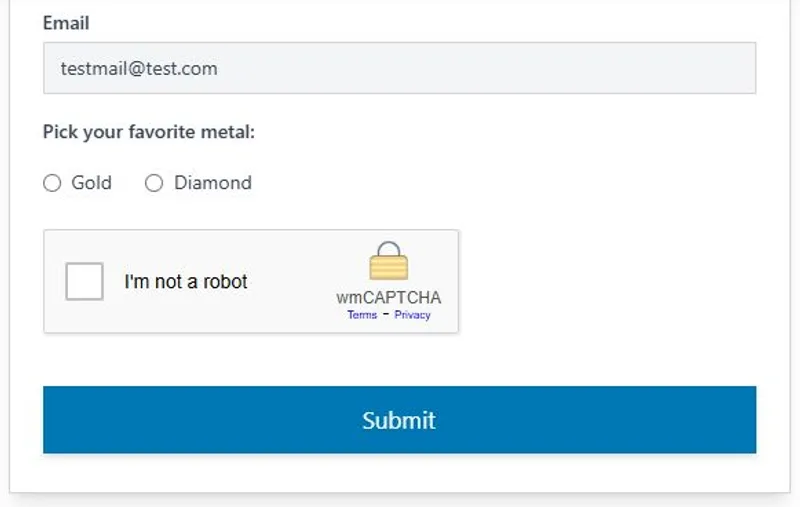
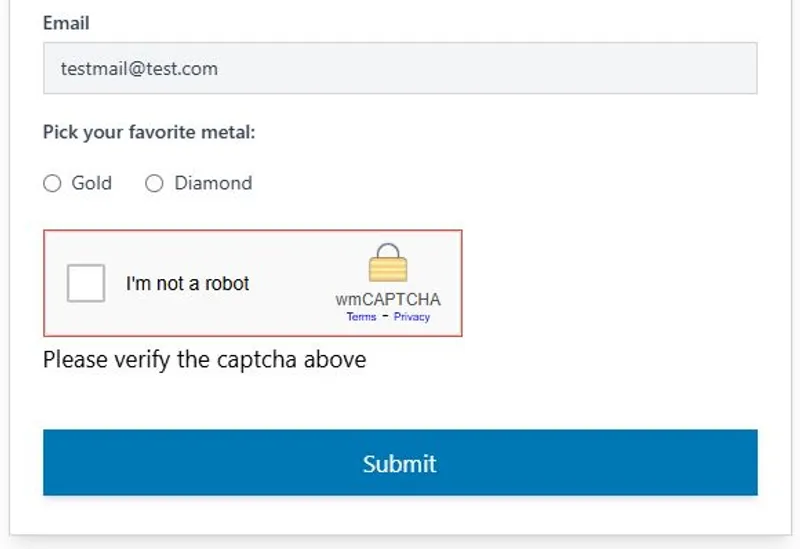
The form below demonstrates how wm-captcha protects a typical contact or input form. The captcha must be verified before the form submission is allowed to proceed. This ensures that automated scripts cannot send requests directly to the form endpoint. The example includes text fields, radio options, and a submit button to replicate a real-world form structure.
Standalone CAPTCHA Demo
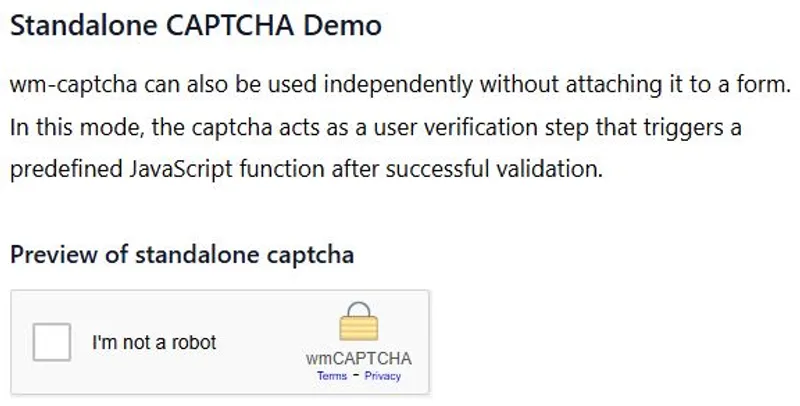
wm-captcha can also be used independently without attaching it to a form. In this mode, the captcha acts as a user verification step that triggers a predefined JavaScript function after successful validation.
Preview of standalone captcha
Encrypted code for standalone captcha
<div
  class="wm-captcha"
  data-success="x7UgxTcoImEfB6Iky74KyoM8B7Mox6N="
  data-wm-protected="true">
</div>
<script>
  function sampleFunctionOnSuccess() {
    alert("User verified successfully");
  }
</script>
This is useful for securing downloads, revealing hidden content, or confirming that a visitor is a real person before allowing specific actions on your website.
Frequently Asked Questions

Start Using wm-captcha
Protect your website forms from spam, fake submissions, and automated bot activity with a simple client-side captcha solution. wm-captcha is quick to integrate, free to use, and works without API keys or account setup. Add it to your website today and keep your form data clean, secure, and reliable.
View Setup Guidewm-captcha is a client-side JavaScript captcha tool designed to stop automated bots and spam submissions on website forms. It verifies that a real user is interacting with the page before allowing the form to submit. By adding a simple captcha checkbox and encrypted form output, it reduces fake entries, protects contact forms, and improves data quality without requiring external services or API keys.
wm-captcha is completely free to use and does not require any account creation, API keys, or subscription setup. Unlike many captcha providers that depend on cloud verification services, wm-captcha works directly in the browser. This makes it suitable for developers, freelancers, and businesses who want captcha protection without managing external dashboards or usage limits.
To add wm-captcha to an existing contact form, first include the official CDN script on your webpage. Then place the captcha container element inside the form before the submit button. After that, paste your full form code into the wm-captcha encryption textarea to generate a protected version. Replace your original form with the encrypted output to enable secure verification.
Yes, wm-captcha is specifically designed to block automated scripts that attempt to submit forms without human interaction. The captcha checkbox requires manual user input and verification before the form action is allowed. Since the form code is also encrypted, bots cannot easily bypass validation or directly send requests to the form endpoint, which significantly reduces spam entries.
wm-captcha works with both GET and POST form submission methods because it intercepts the submission process at the browser level. The captcha verification must be completed before the form is allowed to proceed, regardless of how the data is sent to the server. This makes it compatible with simple HTML forms as well as more complex web applications.
Yes, wm-captcha can be used as a standalone user verification component. By placing the captcha container with a data-success attribute, you can trigger a specific JavaScript function after successful verification. This is useful for protecting file downloads, showing hidden content, or enabling certain actions only after confirming that the visitor is a real human user.
Form encryption is important because it prevents attackers from copying or modifying the form structure, action URL, or field names. When you paste your form into the wm-captcha encryption textarea, it generates a protected version that hides sensitive attributes. This makes it harder for bots to send direct requests or bypass the captcha validation logic.
wm-captcha is well suited for small business websites, portfolio sites, landing pages, and personal blogs that need simple and effective form protection. Since it does not require server configuration or third-party verification services, it can be added quickly to static websites, shared hosting environments, and lightweight web projects with minimal setup effort.
wm-captcha is built as a lightweight JavaScript file delivered through a CDN, so it has minimal impact on page load time. The script loads quickly and runs in the browser without making repeated external verification calls. This approach helps maintain fast page performance while still adding a layer of protection against automated submissions and malicious form activity.
Yes, wm-captcha can be combined with other security practices such as server-side validation, rate limiting, firewall rules, and input sanitization. Using multiple layers of protection improves overall website security. wm-captcha handles client-side human verification, while server-side checks ensure that only valid and properly formatted data is processed by your application.

